If you run a small business, your customers are probably already messaging you on WhatsApp. Questions about hours, pricing, availability, and orders pile up throughout the day. You either spend hours replying manually, or customers wait too long and go elsewhere.
What if an AI could handle the most common questions instantly -- available whenever your customers message, even outside business hours?
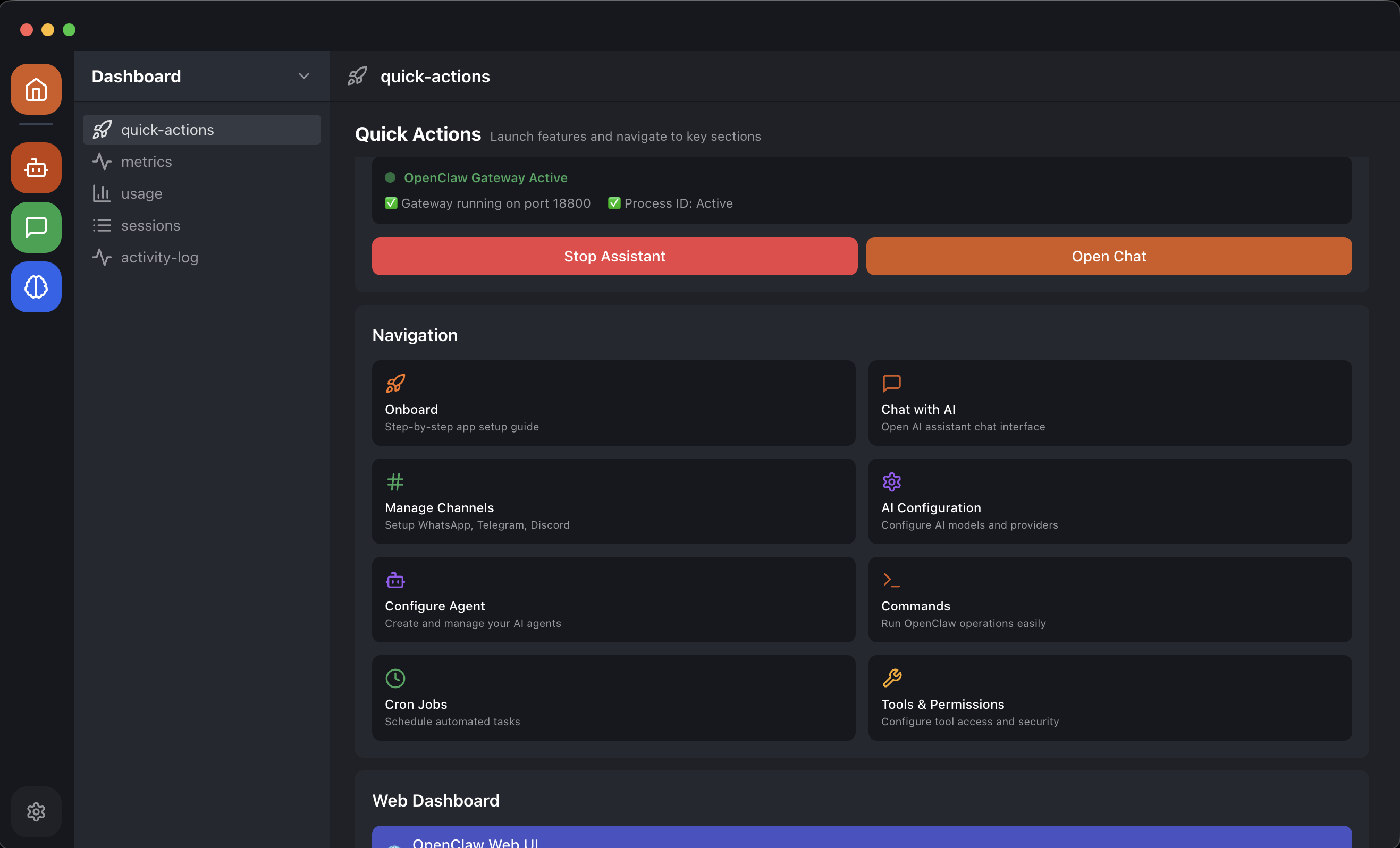
This guide shows you how to set up an AI customer support assistant on WhatsApp for your small business using OpenClaw Easy. No coding. No monthly SaaS subscription. No server to maintain. Just a free desktop app that runs on your Mac or PC.
Why AI on WhatsApp for Small Business?
WhatsApp has over 2 billion users worldwide. In many markets -- Latin America, Europe, South Asia, Southeast Asia, and Africa -- WhatsApp is the primary way customers communicate with businesses. Here is why adding AI makes sense:
- Instant responses. Customers get answers in seconds, not hours. AI handles FAQs so you focus on what matters.
- Always available. The AI responds during lunch breaks, evenings, and weekends -- whenever the app is running.
- Consistent quality. Every customer gets the same accurate, polite, on-brand response.
- Scales with demand. Whether you get 10 or 1,000 messages a day, the AI handles them without breaking a sweat.
- Cost effective. Pay pennies per AI response instead of hiring support staff or paying for expensive chatbot SaaS platforms.
The Problem with Existing Solutions
Most WhatsApp chatbot platforms charge $50-500+ per month and require you to route all your messages through their servers. They lock you into their AI model, their pricing, and their terms.
OpenClaw Easy takes a different approach:
- Free app. No monthly fee for the software itself.
- Your AI provider. Use Claude, ChatGPT, or Gemini at their direct API pricing (much cheaper than SaaS markups).
- Your data. Messages stay on your computer. No third-party data processing.
- No lock-in. Switch AI providers or stop anytime. Your WhatsApp stays yours.
Setting Up AI Customer Support on WhatsApp
1 Download OpenClaw Easy
Download the free app for macOS or Windows. Install and open it.
2 Choose Your AI Provider
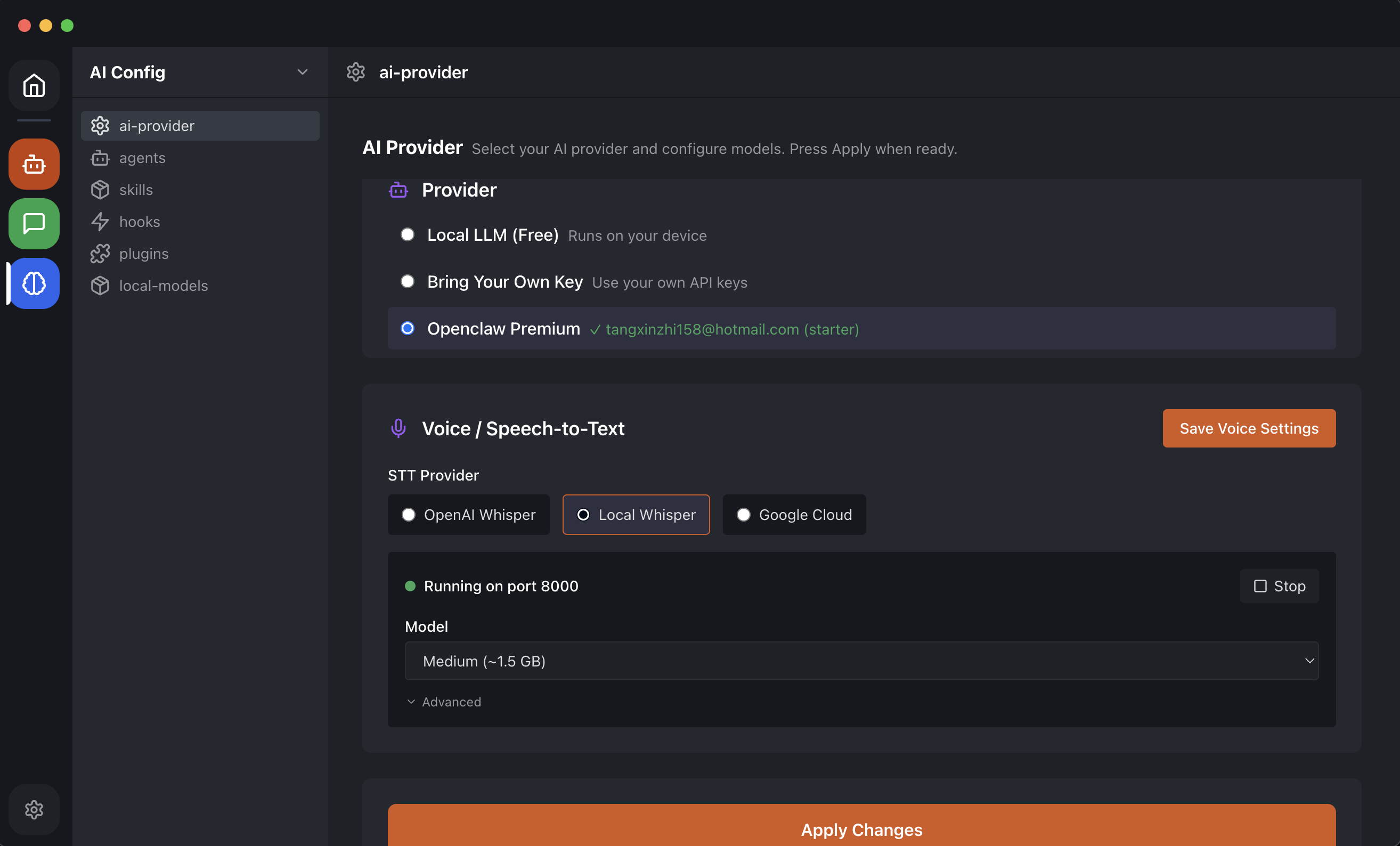
Go to AI Provider and set up your model. For customer support, we recommend:
- Claude Sonnet -- excellent at following instructions and maintaining a professional tone.
- GPT-4o-mini -- very affordable, fast, and good for straightforward FAQ-style responses.
- Premium plan -- if you do not want to manage API keys, the premium plan handles everything.
3 Connect WhatsApp
Go to Channels > WhatsApp and scan the QR code with WhatsApp on your phone. This uses the same Linked Devices feature as WhatsApp Web.
4 Write Your Business System Prompt
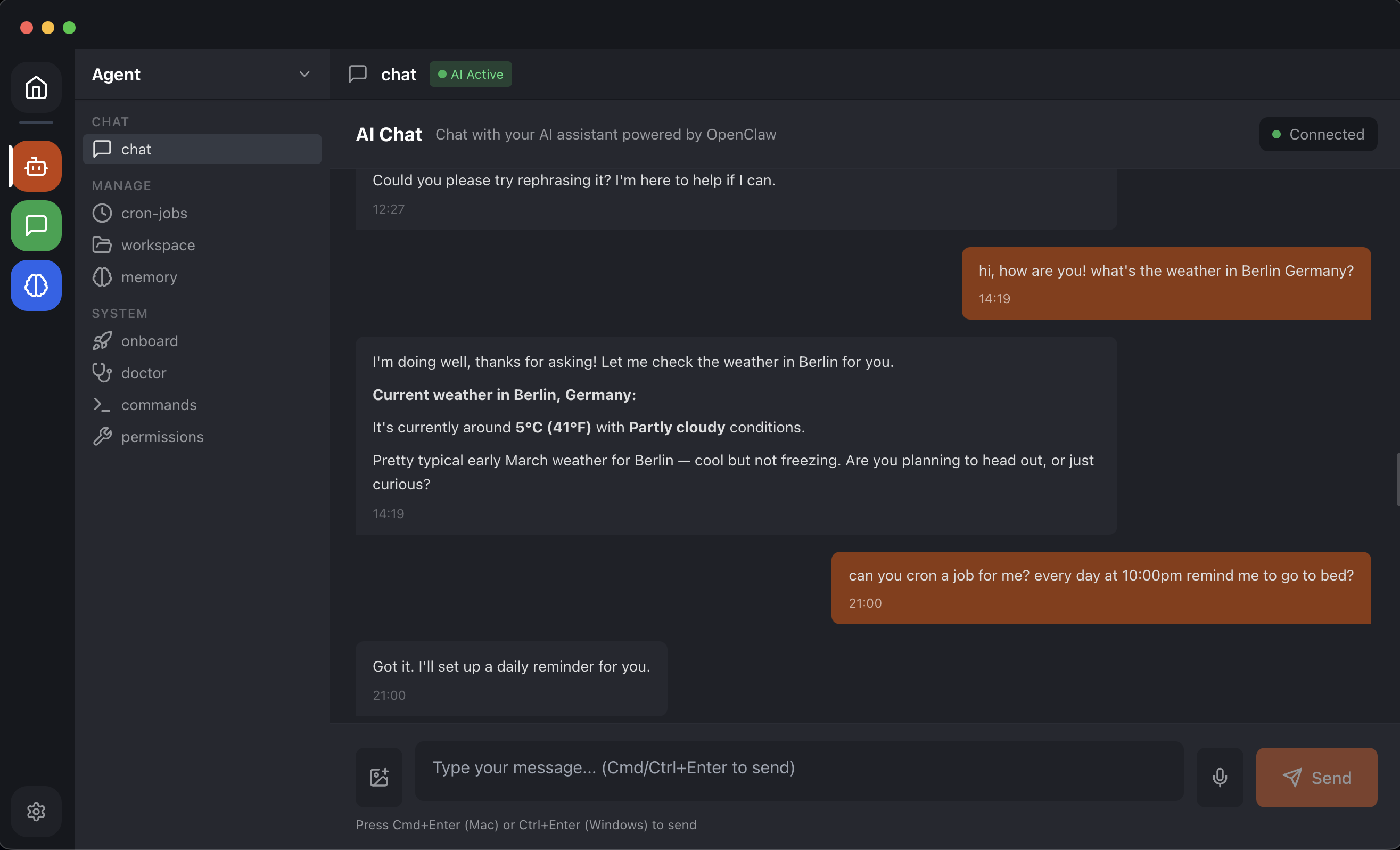
This is the most important step. In Agent Config, write a system prompt that tells the AI who it is and how to behave. Here is a template:
Example system prompt for a restaurant:
You are the AI assistant for [Restaurant Name], a [cuisine type] restaurant in [city]. Be friendly, concise, and helpful.
Our hours: Mon-Fri 11am-10pm, Sat-Sun 10am-11pm.
Our address: [address].
Reservations: Call [phone] or book at [website].
Menu highlights: [list popular dishes and prices].
If someone asks about something you do not know, say: "Let me connect you with our team -- they will get back to you shortly!" and do not make up information.
Always respond in the same language the customer uses.
Customize this for your business. The more specific your prompt, the better the AI performs.
5 Test and Go Live
Send a test message from another phone or ask a friend to message your WhatsApp number. Verify the AI responds correctly and adjust the system prompt as needed.
Best Practices for Business AI on WhatsApp
Be Transparent
Let customers know they are chatting with an AI. A simple note in your auto-greeting or system prompt works: "Hi! I am [Business Name]'s AI assistant. I can help with hours, menu, pricing, and directions. For complex requests, I will connect you with our team."
Set Clear Boundaries
Tell the AI what NOT to do. Include in your system prompt:
- Do not make up information you were not given.
- Do not discuss competitors.
- Do not promise discounts or make commitments on behalf of the business.
- For complaints or complex issues, redirect to a human: "I am connecting you with our team."
Keep Responses Short
WhatsApp is a messaging app, not an email client. Set token limits in Agent Config to keep AI responses concise -- 2-3 short paragraphs maximum.
Use Multilingual Support
If your customers speak multiple languages, add to your system prompt: "Always respond in the same language the customer uses." Models like Claude and GPT-4 handle this automatically.
Schedule Automated Messages
Use the Cron Jobs feature in OpenClaw Easy to send scheduled messages:
- Daily specials at 11 AM
- Weekend promotions on Friday afternoon
- Appointment reminders
- Follow-up messages after purchases
Cost Breakdown
Here is what a typical small business can expect to pay:
- OpenClaw Easy app: Free.
- AI API costs (ChatGPT/Claude): Roughly $0.001-$0.01 per customer message. For 100 customer conversations per day, expect $3-$10/month.
- Premium plan (optional): Starting at $9/month for managed AI access without API key setup.
Compare this to chatbot SaaS platforms that charge $50-$500/month for similar functionality.
Business Types This Works For
- Restaurants and cafes -- hours, menu, reservations, delivery info.
- Retail shops -- product availability, pricing, store hours, return policy.
- Service businesses -- appointment booking, service descriptions, pricing quotes.
- Real estate -- property inquiries, viewing schedules, neighborhood info.
- Healthcare clinics -- appointment booking, hours, insurance questions, directions.
- Freelancers and consultants -- service descriptions, availability, portfolio sharing.
- E-commerce -- order status, shipping info, product recommendations.
Frequently Asked Questions
Can I use WhatsApp Business with OpenClaw Easy?
Yes. OpenClaw Easy works with both regular WhatsApp and WhatsApp Business. The setup is identical -- scan the QR code from your WhatsApp Business app.
Will the AI work when I am not at my computer?
The AI responds when OpenClaw Easy is running on your computer. Minimize the app to the system tray and leave your computer on during business hours. For 24/7 coverage, keep the computer on overnight or consider an always-on machine.
Can the AI handle multiple conversations at once?
Yes. The AI handles concurrent conversations with no delay. Each customer gets a response within seconds.
What if a customer asks something the AI cannot answer?
Configure the system prompt to redirect: "I am not sure about that -- let me connect you with our team." You can then follow up manually from the WhatsApp app on your phone.
Is my customer data safe?
Yes. OpenClaw Easy runs locally on your machine. Customer messages are processed on your computer and sent only to the AI provider you choose. No data passes through OpenClaw Easy servers.
What is Next?
- Set up more channels -- add AI to Telegram or Slack for your team.
- Explore cron jobs -- schedule automated messages for promotions and reminders.
- Try local AI -- run a local model for maximum privacy.
Your customers are already on WhatsApp. Give them the instant, intelligent responses they expect. Download OpenClaw Easy for free and set up AI customer support in five minutes.